Convert Text
This is the help file for the Convert Text option under the Edit menu.
Each conversion action modifies text in the main document.
If you need to revert any changes, use Undo from the Edit menu.
To access this feature, open the Edit menu and select Convert Text.
The conversion window appears as shown below.
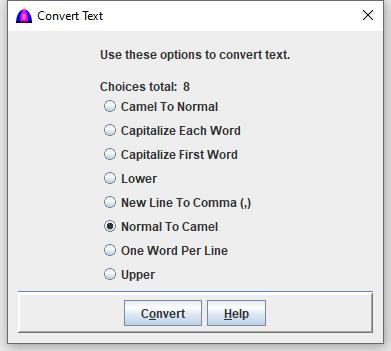
Conversion Options
The following options apply to the selected text:
-
Camel To Normal — Convert camel-case words to standard lowercase format.
Example: YoojYim → Yoojyim, puamChawj → puamchawj
-
Capitalize Each Word — Capitalize the first letter of every word.
Example: kuv moog nuv ntseg → Kuv Moog Nuv Ntseg
-
Capitalize First Word — Capitalize only the first word in the sentence.
Example: koj yog tug twg? → Koj yog tug twg?
-
Lower — Convert all letters to lowercase.
-
New Line to Comma — Replace each line break (Enter key) with a comma (,).
-
One Word Per Line — Place each word on its own line.
-
Upper — Convert all letters to uppercase.
Procedure
-
Select the text to be converted using the keyboard or mouse.
If no text is selected, the entire document is processed.
-
Choose one conversion option.
-
Click Convert to apply the selected conversion.
-
Repeat the steps above to perform additional conversions if needed.
-
Click Help to view this help file.
File name: ConvertText.html
Date: 12/15/2025