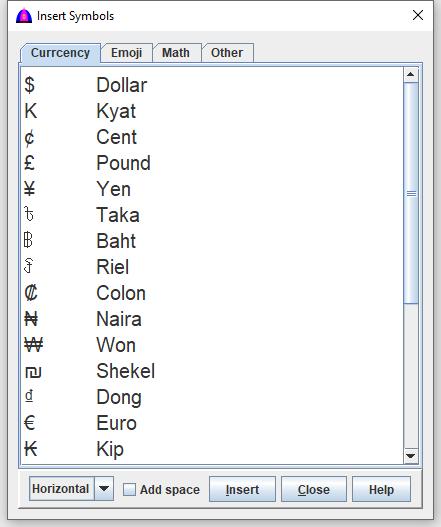
This is the help file for Insert Symbols option under the Insert menu.
To use this feature, click Insert on the menu bar, then Symbol from the dropdown list to open the window shown below.
Overview
The software can read all symbols inserted from this window.
Every symbol shown is a Unicode character, and the name displayed to the right of each symbol is for reference and reading aloud while reading.
When inserting, the program inserts the symbol itself, but not its name.
You may insert a single symbol or multiple symbols at once, either horizontally or vertically.
Procedure
Follow the steps below:
Select Horizontal or Vertical from the combo box:
Horizontal: Inserts all selected symbols on one line, next to each other.
Vertical: Inserts each selected symbol on its own separate line.
Check the checkbox Add space option
to add one blank space after each symbol when using Horizontal mode.
Click a location in your document where the symbol(s) should be inserted. In case there are two or more active documents showing, click the one that needs to be inserted to get focus when flasing all four borders in red color.
Click a tab to show the group of symbols you want to choose from.
Scroll up or down to see more symbols.
Click a symbol to select it.
Double-click a symbol, or click the button, to insert the selected symbol.
To insert multiple symbols:
Highlight them with the mouse, then click .
To insert all symbols on a tab:
Press Ctrl + A to select all → click the document → click .
To insert symbols together with their descriptions:
Select them → press Ctrl + C → click the document → press Ctrl + V.
To undo inserted symbols, choose Undo from the Edit menu.