Remove Tool

This is the help file for Remove option under Edit menu.
Instead of spending many hours, use this feature to manipulate and clean up data from external sources such as web pages and other documents on the fly.

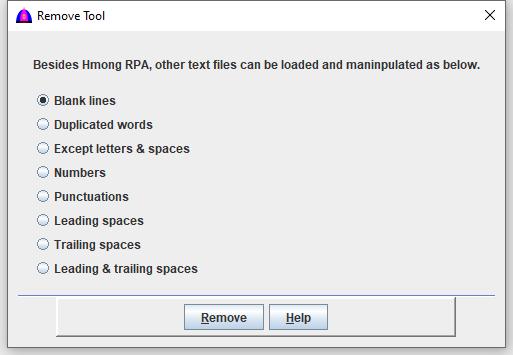
To use this feature, choose Edit when available, then Remove from the drop down to show as below.


Each action performed on this menu affects the document on the main document, and in case needed to recover changes, choose the Undo option under Edit.

Each of the following options describes what each one does to the selected texts:

Option Descriptions
Name Action
Blank lines Remove all blank lines.
Duplicated records Remove duplicated records separated by linefeed, then all records are sorted in ascending order. In a document, there are many lines, and some lines may have one word, two and many words. By using this procedure, it will remove all duplicates for one word, two and many words line by line.
Example: Instead of finding and removing duplicates from a list with hundred, thousand or million words from a list manually, use this feature to remove them.
Except letters & spaces Keep only letters and spaces.
Numbers Remove all numbers.
Punctuations Remove all punctuations. Keep all letters, numbers and spaces.
Leading spaces Remove all leading spaces.
Trailing spaces Remove all trailing spaces.
Leading & Trailing spaces Remove all leading and trailing spaces.


Procedure

  1. Select the texts to be processed with the keyboard or the mouse.
  2. Click any of the radio button options to select.
  3. Click Remove to process the selected option.
  4. Choose the Undo or Redo option under Edit as needed.
  5. Repeat from step 1 above to process more options.
  6. Click Help to show this help if needed.
  7. After changes done by processes above, the document can be saved to the same file name or with different file name as needed.


File name: RemoveTool.html
Date: 12/16/2025