Setting Preferences

This help file describes the Setting Preferences option under the Setting menu.

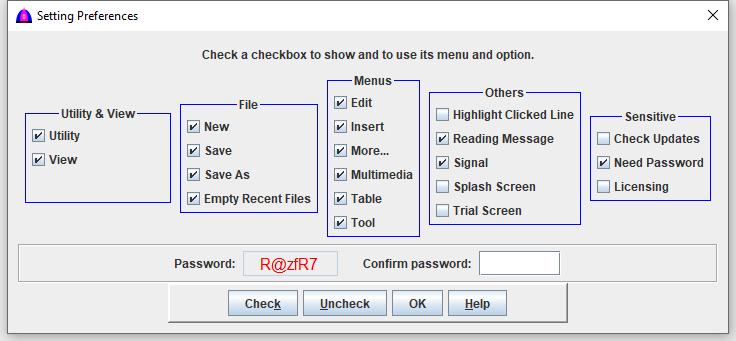
To use this feature, choose Setting, then select Preferences from the dropdown menu. The window will appear as shown below:


All checkbox groups on this screen are arranged in the same order as the menus in the menu bar or toolbar, because they are related. Only the final group contains miscellaneous settings not tied to a menu.

Notes:
  1. Any of these preferences can be turned on or off at any time.
  2. If you mainly use Yuhalu to load files for reading and want to hide unused features, you may uncheck those options.
  3. All changes are saved to the FileParameter.cfg file and will remain in effect until changed again.

IMPORTANT: If the checkbox Save is unchecked, changes to the main document will not prompt a “Save” confirmation.


Other Checkboxes
Name Description
Highlight Clicked Line Highlights the entire line in the main document when clicking on it.
Need Password Prompts for a password when saving a file or performing sensitive tasks.
Reading Message Displays a message when clicking the read button if reading is still in progress.
Signal Shows the signal indicator checkbox on the floating toolbar.
Splash Screen Shows the splash screen each time Yuhalu starts.


Procedure

  1. To show a menu or feature, check its checkbox.
  2. To hide a menu or feature, uncheck its checkbox.
  3. Click Check button to check all checkboxes.
  4. Click Uncheck button to uncheck all checkboxes.
  5. Enter the displayed random password into the field on the right side. This prevents accidental or unintended changes to the document.
  6. Click OK button to apply changes immediately and save them for future use.
  7. Click Help button to show help file.

File name: SettingPreference.html
Date: 12/17/2025