Text To Audio
This is the help file for the Text To Audio option under the Tool menu (if available).
This feature allows you to export selected text together with audio by choosing any available voice and reading speed.
The output is saved as audio files in WAV format (44,100 Hz, 16-bit, monaural), which can be played using most media players.
Instead of using an external recording device while reading text and playing music from the main document, this feature simplifies the process and saves time.
It normalizes all selected text, applies punctuation-based pauses, and concatenates the corresponding audio segments to produce new audio files.
Because this process reuses internally generated audio data, exporting is very fast and efficient.
Trial Mode Limitation
When Yuhalu is running in Free Trial mode, the
Text To Audio feature has the following limitations:
- Text-to-audio export is limited to 100 words per audio file.
- A watermark is automatically appended to each exported audio file.
These limitations are removed in the licensed version.
Capturing Audio While Reading Aloud
As a workaround in Trial mode, users may capture audio by recording
while the text is being read aloud.
Important: Audio captured from internal speakers or system loopback
is significantly lower in quality compared to direct text-to-audio
export in the licensed version.
- Loss of precise pitch and tone contours
- Resampling and mixer artifacts introduced by the operating system
- Reduced clarity of consonants and vowels
- Not suitable for linguistic study, teaching, or dictionary use
Another important drawback of capturing audio while reading aloud is
the time required to complete the recording.
- Audio capture runs in real time, meaning the recording takes
as long as the spoken text itself.
- Long passages may require several minutes or more to finish recording.
- Any interruption (pause, notification, or system sound) may require
restarting the recording.
In Trial mode, users may also export text in multiple
100-word chunks. However, this approach introduces additional work:
- Each exported audio file contains a watermark that must be removed individually.
- All processed files must then be manually concatenated into a single final audio file.
- This workflow requires extra tools, repeated processing, and careful editing.
As the number of audio segments increases, the total time and effort
increase significantly.
At the end, the overall cost—in terms of time, effort, and resources—
often outweighs the benefit of using Trial mode for large text-to-audio tasks.
Time is money. For best audio quality, efficiency, and productivity,
direct text-to-audio export in the licensed version is strongly recommended,
especially for tonal languages such as Hmong RPA.
Notes:
- While this option is active, some menus and options are temporarily disabled (grayed out).
- If text is selected before opening this window, it is automatically loaded and ready for export; otherwise, the window appears blank.
- Only the first 5,000 characters are displayed for preview purposes, but all selected text is preserved and processed in the background.
Tips:
- To export text and audio from other documents, copy them and paste them into the main document first.
- After clicking the Get Text button, review and correct any detected errors in the main document.
- Because WAV files can be very large, consider exporting to MP3 format when sharing files online.
To use this feature, select Text To Audio from the Tool menu, as shown below.
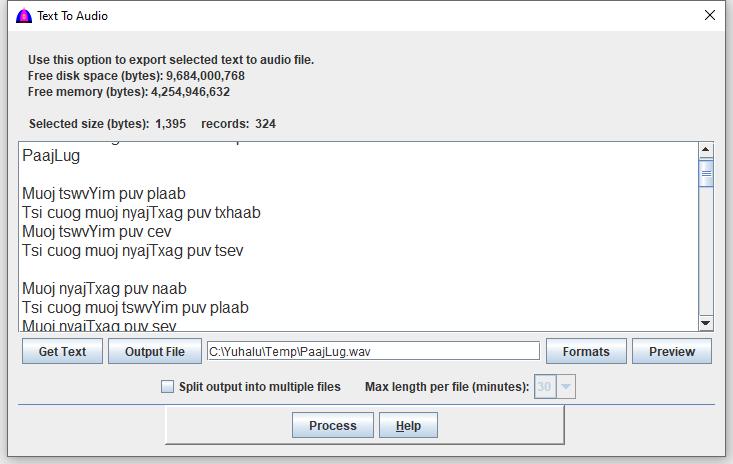
Procedure
Important:
All parameters from Audio Options, Pause Time, and Reading Options under the Setting menu apply to this process.
Make sure these settings are configured correctly before exporting.
While this window is open, follow these steps:
-
Click the main document and select the text to export using the keyboard or mouse.
Do not select text inside the Text To Audio window.
-
Click the Get Text button to normalize, tokenize, and spell-check the selection.
This process is identical to the
 Read button, except that no audio is played.
The preview area shows part of the selected text for reference only.
Read button, except that no audio is played.
The preview area shows part of the selected text for reference only.
-
Click the Output File button and enter a base file name (for example: MyAudio).
When multiple files are created, they are automatically numbered
(e.g., MyAudio-1.wav, MyAudio-2.wav).
Note: If no file extension is specified, .wav is used by default.
-
Enable Split output into multiple files if you want to divide the export into several files based on playback duration.
-
If splitting is enabled, select a duration (10–60 minutes) for each output file.
Each file will contain approximately the selected amount of playback time.
Notes:
- If the entire selection fits within 5 minutes, only one output file is created.
- Splitting files helps reduce file size for easier sharing.
- Due to WAV format limitations (32-bit file size), the maximum file size is 4 GB.
- In this software, the maximum file size per output is 317,520,000 bytes (approximately 1 hour of audio).
- Exported audio usually sounds cleaner and plays faster than real-time reading in the main document.
- If insufficient memory is available, a red warning message will appear and some buttons will be disabled.
-
To preview audio, click the Read button or the Repeat button on the Text Toolbar.
The Stop, Pause, and Resume buttons are also available.
-
Click the Process button to export the audio files, then follow the on-screen instructions.
Notes:
- All exported WAV files use 44.1 kHz sampling rate, 16-bit depth, and monaural audio.
- Exporting is usually very fast, but longer selections and larger duration settings may take more time.
- For short exports, processing typically completes in a few seconds.
- After exporting, a summary popup displays created files and their durations.
- An additional .txt file is generated for reference, although it is not shown automatically.
-
Click the Help button to display this help file.
File name: TextToAudio.html
Date: 12/27/2025