Video Editor
This is the help file for the Video Editor.
The Video Editor allows you to convert any supported video file into another format
(such as MP4, MOV, AVI, MKV, FLV, or WebM), adjust resolution, frame rate, and apply trimming if needed.
This tool is useful when preparing video clips for use inside the Yuhalu program or for general editing.
To open this feature, click Utility → Video Editor from the top menu.
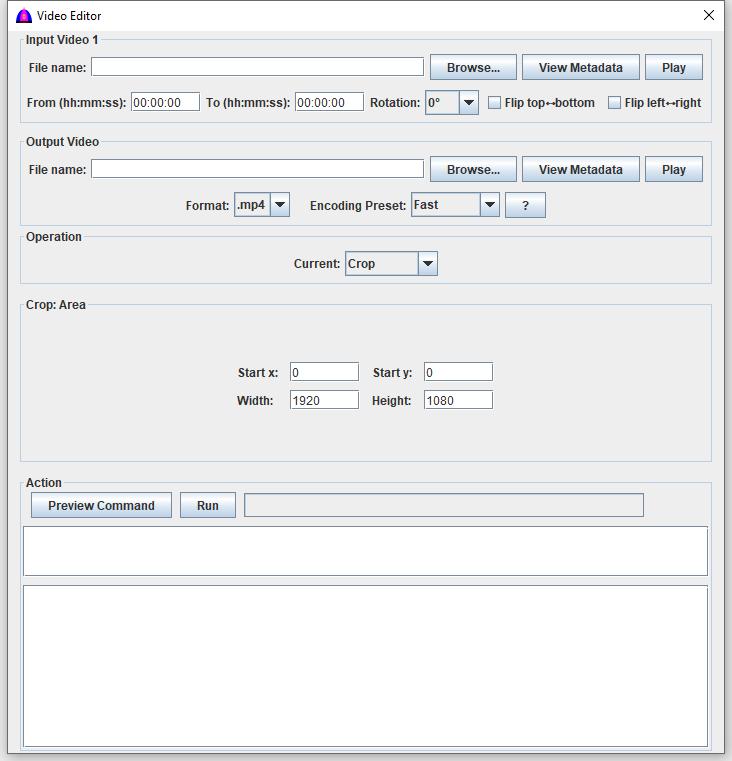
Main Controls
Input Video 1
- Click the Browse button to choose the source video file.
- Click the View Metadata button to view it metadata.
- Click the Play button to play.
- Enter From (hh:mm:ss:) for the starting time.
- Enter To (hh:mm:ss:) for the ending time.
- Enter Rotation angle from the combobox from 0, 90,180 or 270 as needed.
- Check checkbox Flip top↔bottom if needed.
- Check Flip left↔right as needed.
Output Video
Click Browse button to choose output file.
Choose file extension Format: .mp4, .mk4 or .mov. The file extension determines the target format.
Encoding Preset: Choose an encoding. Click ? to view encoding.
Operation
There are many operations inside the Operation. For now, only the Crop is explained.
The following are available:
- Crop
- Dub
- Cut
- Extract
- Merge
- Normalize
- OverLay
- Stretch
- Trim
- Watermark
Click Current to choose Crop.
Crop:Area
Enter Startx: for the physical start x on the screen.
Enter Starty: is the physical start y on the screen.
Width: 1920 is the width.
Height: 990 is the height.
Select a new width × height (for example, 1920×1080 or 1280×720).
Leave unchanged to keep the original resolution.
Notes
- Leaving any setting blank will keep that parameter the same as the input file.
- Trimming is optional; you may convert the entire file without trimming.
- Some formats may not support all settings (bitrate, audio codec, etc.).
In such cases, the converter will choose the closest supported parameters.
- High-resolution or long videos may take time depending on computer speed.
File name: VideoEditor.html
Date: 12/16/2025