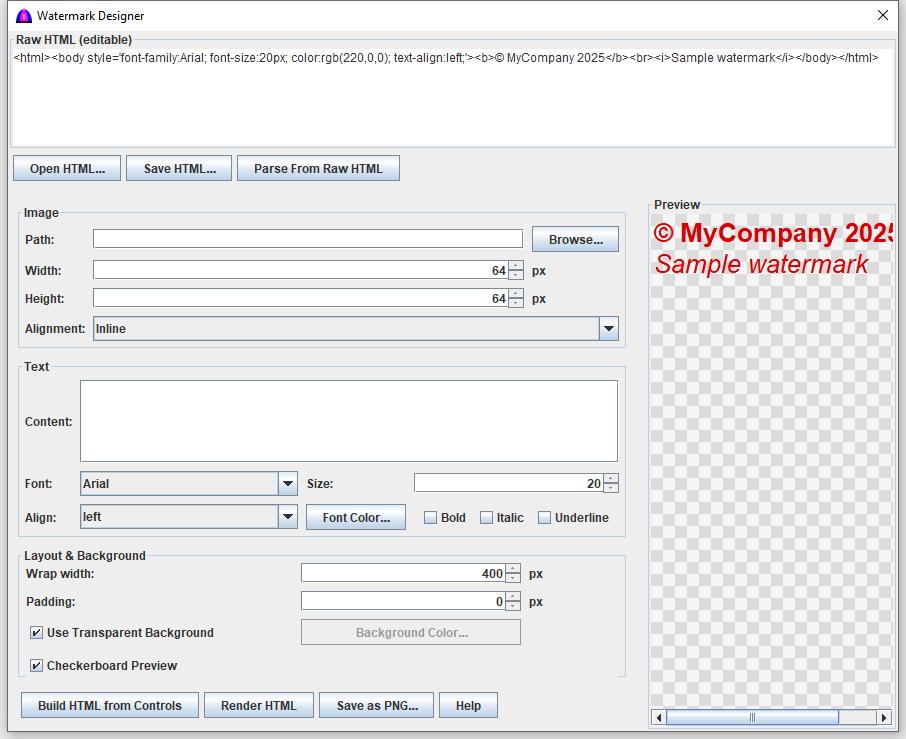
The Watermark Designer allows you to place text or image watermarks on videos or screenshots.
It supports font settings, color selection, image scaling, opacity control, and exact position adjustments.
To open this feature, click Utility → Watermark Designer from the top menu.
Watermark Type
The designer supports two watermark types:
Text Watermark
Image Watermark (PNG, JPG, BMP, GIF)
Select the watermark type using the radio buttons at the top of the screen.
Text Watermark Options
Text Input: Enter the text you want to display as a watermark.
Font: Choose font family and size.
Color: Click the color box to open the color picker.
Outline (optional): Add a black outline around the text for better visibility.
Opacity: Adjust the transparency level of the text (0% to 100%).
Image Watermark Options
Select Image: Click to choose an image file.
Scale: Resize the image using the scale slider or number box.
Opacity: Adjust transparency (0% to 100%).
Position Controls
You can place the watermark anywhere on the screen using these controls:
X Position: Horizontal placement.
Y Position: Vertical placement.
, , , : Quick anchor positions.
: Place watermark in the exact center.
Preview & Apply
: Refreshes the preview with the latest settings.
: Apply the watermark to the current video or captured frame.
: Save your preferences for future use.
: Show this help file.
Notes
PNG images with transparency are recommended for cleaner image watermarks.
Use low opacity for subtle branding; use higher opacity for copyright protection.
Position and scale values are saved automatically while the window is open.