Table
The Table feature allows text to be displayed and processed in rows and columns, similar to a spreadsheet.
It is especially useful when working with multiple dialects such as English, Dawb, Leeg, and Shib.
To open the table window, choose Table from the main menu, as shown below.
Dialect Usage
The following example demonstrates text written in multiple dialects.
The inline command <Dialect:> determines how each line is read aloud.
<Dialect:English> Good morning, how are you?
<Dialect:Dawb> NyobZoo yav sawvNtxov, koj nyob li cas?
<Dialect:Leeg> NyobZoo yaav sawvNtxuv, koj nyob le caag?
<Dialect:English> I am fine, and you?
<Dialect:Dawb> Kuv nyobZoo, thiab koj nev?
<Dialect:Leeg> Kuv nyobZoo, hab koj nev?
<Dialect:English> I am fine too, and thank you.
<Dialect:Dawb> Kuv nyobZoo tibYaam, thiab uaTsaug.
<Dialect:Leeg> Kuv nyobZoo tuobYaam, hab uoTsaug.
<Dialect:English> My name is Paul.
<Dialect:Dawb> Kuv npe hu ua Pov.
<Dialect:Leeg> Kuv npe hu uo Pov.
<Dialect:> is an inline command that sets the reading dialect for subsequent text.
Supported dialect commands include:
- <Dialect:English>
- <Dialect:Dawb>
- <Dialect:Leeg>
- <Dialect:Shib>
When text is placed inside a table, the software automatically uses the column headers (English, Dawb, Leeg, Shib) to determine the reading dialect.
Example – Text in Table Form
The example below shows how the same content can be organized into columns for easier reading and processing.

Table Window Overview
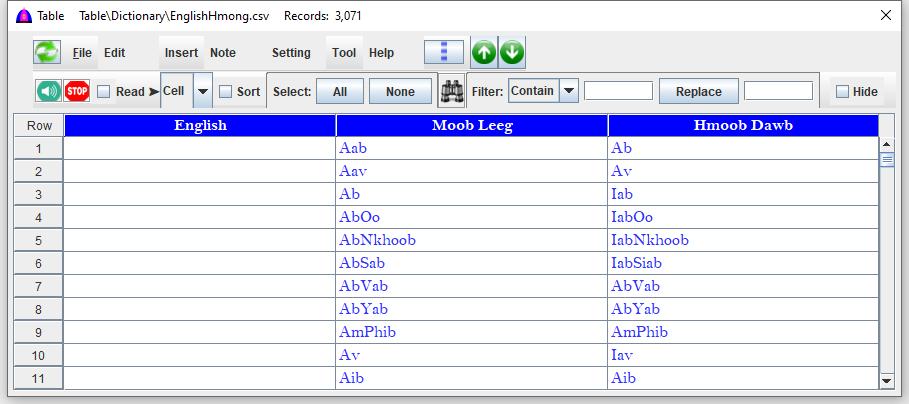
The table opens in a separate window, as shown below.

The table window contains the following main areas:
- Title Bar — Displays the table name
- Menu Bar — File, Edit, Insert, Note, Setting, Tool
- Toolbar — Quick-access controls for reading, searching, filtering, and editing
- Table Area — Rows and columns containing text data
Menu Bar
The menu bar provides access to table operations such as creating, opening, editing, and processing tables.
File Menu
The File menu is used to manage table files.
- New — Create a new table
- Import — Import a table from an external file
- Open — Open an existing table
- Save As — Save the current table under a new name
- Print — Print the table contents
- Exit (F4) — Close the table window (prompts to save if needed)
Edit Menu
Editing functions are described in:
TableEdit.html
Insert Menu
Insertion features are documented in the user manual under the Insert Menu section.
Note Menu
See:
PopupNote.html
Setting Menu
Table-related settings are described in:
TableSetting.html
(Some options may be unavailable depending on current configuration.)
Tool Menu
The Tool menu provides table-specific utilities.

- Add Column — Insert a new column into the table
- Change Headers — Rename column headers
- Transliterate — Convert text between dialects based on column headers such as Dawb, Leeg, and Shib
Toolbar
The toolbar offers quick access to commonly used actions:
- Read — Read the selected row or the entire table
- Stop — Stop reading
- Read Cell — Read only the selected cell
- Sort — Sort rows by clicking a column header
- Select All — Select all rows
- Select None — Deselect all rows
- Find — Search text within a selected column
- Filter — Filter rows dynamically while typing
- Replace — Replace text in selected rows of the active column
File name: Table.html
Date: 12/15/2025