Text Selection
This is the help on how to select or to highlight texts with the mouse or the keyboard for reading.
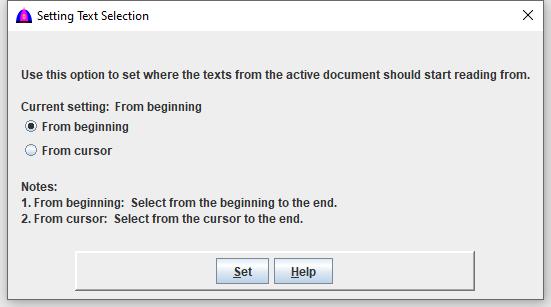
Use this option to set where the texts from the active document should start reading from when clicking the read button, but there is no selection.
To use this feature, choose Setting from the menu bar, then Text Selection to show its menu as below.
Selection With The Mouse
To highlight text with the mouse, position the cursor at the beginning of the text wanted to highlight. Press and hold the primary mouse button (commonly the left-button). While holding the mouse button, drag the cursor to the end of the text and let go of the mouse button. Once completed, all text from the beginning to the end should be highlighted.
Selection With The Keyboard
-
To highlight with the keyboard, move to the starting location with the arrow key, hold down the Shift key, and press the arrow key in the direction wanted to highlight. Once everything wanted is highlighted, let go off the Shift key.
- To highlight one word at a time, press Ctrl key while holding down Shift, and then press the left or right arrow key.
- To highlight a whole line of text, move the cursor to the start of the line, hold the Shift key, and then press the down arrow. The shortcut key combination Shift + End may be used also.
- To highlight all text in the document, press the shortcut key Ctrl + A.
For more help, click this link ShortcutKey.html, and refer to Windows Shortcut Keys section.
File name: TextSelection.html
Date: 12/16/2025