Yuhalu User Manual
This is the user manual for Yuhalu Hmong Text-To-Speech software, version 2.0.It is written in HTML, so links behave the same as those on a webpage. Clicking a link opens another page, which may contain additional links, and so on.
Please read the Disclaimer regarding the use of software and documents from Yuhalu.org.
Purpose
- The primary purpose of this software is to provide learning and teaching tools to help users learn the Hmong language and preserve it for future generations.
- Another intention of writing the software in Java is to allow it to run on multiple platforms such as Windows, Mac, Linux, Unix, and others.
Features
Below are some of the key features provided by this software:-
Dialects Supported
This software supports both White Hmong (Hmoob Dawb) and Blue Hmong (Hmoob Leeg) dialects, written in the Romanized Popular Alphabet (RPA) used in Southeast Asia. It can also read English text.
Mixed texts may be placed together in the same document by using inline tags such as:
- <Dialect:Dawb> — Normalizes all numbers into White Hmong words for subsequent text.
- <Dialect:Leeg> — Normalizes all numbers into Blue Hmong words for subsequent text.
- <Dialect:English> — Indicates that the following text should be interpreted and read as English.
-
Audio Files
Each voice contains more than 6,200 audio files used for text-to-speech synthesis.
Note: Some sounds ending with tone marker g were removed in version 2.0 because they sound identical to the tone marker s in many cases. Examples: chaus sounds like chaug, haus sounds like haug, faus sounds like faug, and others.
Users may also create their own voice by recording each syllable as a WAV file. See the Voice\Hmong subfolder for naming examples.
Using syllable and word concatenation, the software can also read other Hmong scripts if their transliterations are supplied in RPA. -
Inline Commands
Yuhalu includes a large number of inline commands that control audio speed, pitch, volume, voice selection, pause time, echo, intonation, audio playback, video playback, picture slideshows, and many animated options. -
Lessons
- Several lessons are included to help users learn vowels, consonants, tones, and other components of the Hmong language. Lessons may include text, audio, video, buttons on multiple tabs, or spreadsheet-style tables.
- Users may also create their own lessons and slideshows, add music or recorded audio, and share them with others.
-
Check Spelling
- The software can break disyllables and polysyllables into monosyllables to check spelling. Due to modern CPU speed, spelling checks are very fast—for example, checking 366,000 words takes only about five (5) seconds.
- Note: Other commercial word processors can check spelling but usually only for monosyllables unless the user provides a dictionary containing mono-, di-, and polysyllabic words.
-
Text To Audio
This feature exports text to audio in WAV format (44,100 samples/second, mono) by concatenating pre-recorded digital sound files, instead of recording real-time playback. This method produces much higher quality and is significantly faster.
Additional export formats include AAC, FLAC, and MP3.
Both English and Hmong text, including background music, can be exported and used for video dubbing or other multimedia projects. -
Word Extraction
Using modern OCR technology (such as Acrobat and others), printed Hmong dictionaries, Bibles, and publications can be scanned. This feature allows extraction of monosyllables, disyllables, and polysyllables from those documents. -
Utility Helpers
A number of helpful utilities are included:- Analyze and clean thousands of noisy audio files on the fly.
- Convert audio files among AAC, FLAC, MP3, and WAV formats.
-
A built-in video editor with options to:
- Crop
- Cut
- Dub
- Extract
- Merge
- Normalize
- Overlay
- Stretch
- Trim
- Watermark
- Watermark designer
Requirements
- A computer with at least 2GB RAM, 5GB of hard drive, speaker, mouse, and keyboard
- A monitor with resolution at least 1,024 X 768 pixel, higher resolution is better.
Note: As option, a projector and/or speakers can be connected to a computer to be used at school, at church, and at any social gatherings. - Oracle Java JRE (Java Runtime Environment) software is needed to download and install for the required operating system. Refer to its download instructions online, including setting up variable path.
Manual Written Order
This manual is written in sequential order from top to bottom and left to right as all the menus and options show on the screen.Title Frame
This is the top label showing the title Yuhalu Hmong Text To Speech followed by the name of the active document for the main document.Refer to its picture shown here.

Menu Bar
As shown below, the menu bar is a horizontal bar anchored to the top of the screen, the second one from the title frame. It is a graphical interface with menus that contains drop down menus where user can access and interact with the software.Besides drop down menus, all other buttons and checkboxes on the Main Toolbar are added to this menu bar. It is a floating menu bar meaning it can be dragged with the mouse and positioned to any location on the screen.
To drag it, click to the left of the binocular and hold the left mouse button, then drag to desired location.
To restore to its original location on the menu bar, click X on its top right.

Tip: All scrolling menus support mouse double click. This means that to open a file, or perform other tasks, just double click a choice with the mouse instead of clicking it, then click the button or the appropriate button.
Notes:
- Most of the menus have instructions on how to use them, and options to turn on or off, refer to SettingPreference.html.
- Some menus on the Menu bar and some on the drop down menus are not active because they are not allowed to use or not applicable.
- When shortcut key is available on menu, press the Alt key and the underlined letter to use that option, example: Alt + F to access File menu. Refer to ShortcutKey.html for more details.
Setting Menu
This picture below shows its submenus.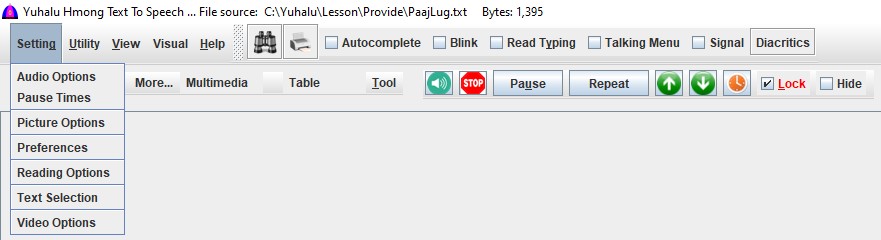
These dropdown menus have their own help file. For more detail, click their appropriate Help button.
| Name | Function |
|---|---|
| Audio Options | Refer to their screens or help files as below:
|
| Pause Time | Refer to its screen or help file SettingPauseTime.html |
| Picture Options | Refer to its screen or help file SettingPictureOption.html |
| Preferences | Refer to its screen or help file SettingPreference.html |
| Text Selection | Refer to its screen or help file TextSelection.html |
| Video Options | Refer to its screen or help file VideoOption.html |
Utility Menu
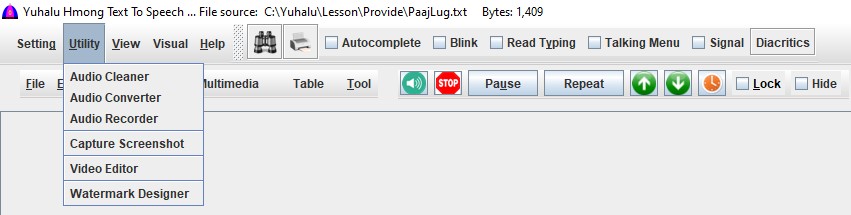
| Name | Function |
|---|---|
| Audio Cleaner | Refer to its screen or help file AudioCleant.html |
| Audio Coverter | Refer to its screen or help file AudioConverter.html |
| Capture Screenshot | Refer to its screen or help file CaptureScreenshot.html |
| Video Editor | Refer to its screen or help file VideoEditor.html |
| Watermark Designer | Refer to its screen or help file WatermarkDesigner.html |
View Menu
Any of these options can use to view, but not to edit (read only).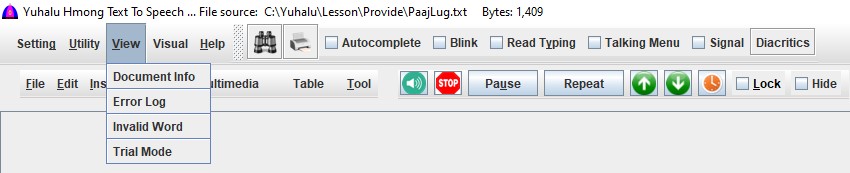
| Name | Function |
|---|---|
| Document Info | View the number of byte and number of word on the main document based on text selection. If no selection, the text on the whole document is selected as default. |
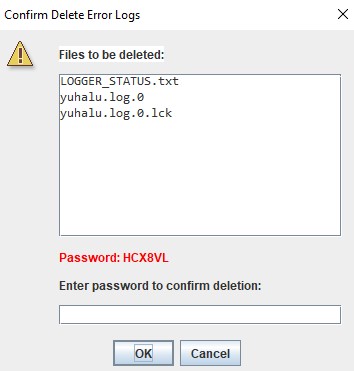
| Error Log |
This feature allows you to view runtime error messages recorded by Yuhalu.
These logs can be sent back to the Yuhalu developer for debugging if needed. 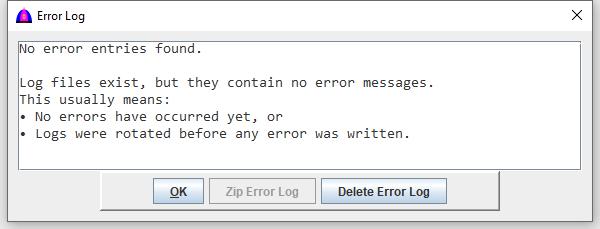 The Error Log window provides the following options:
|
| Invalid Word | View invalid words and data entry after check Spelling or processing reading data if there are any. |
Visual Menu
This option is to set visual on the main document, and refer to its picture below.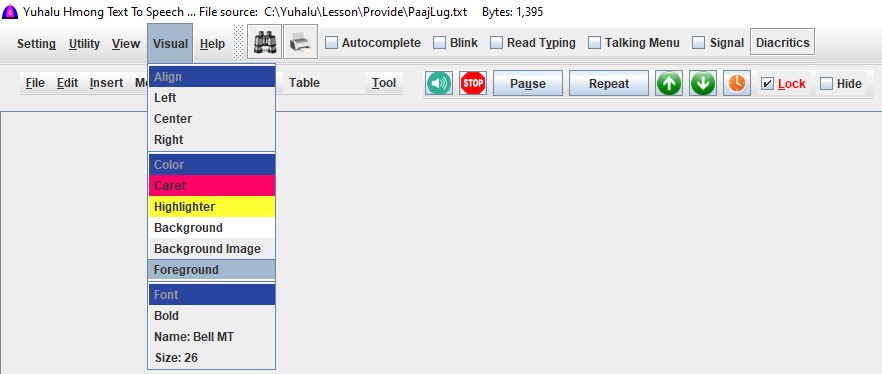
| Name | Function |
|---|---|
| Align | Click Left, Center or Right to align text as needed. |
| Left | Alight all text to the left side or left justified. |
| Center | Alight all text to the center. |
| Right | Alight all text to the right side. |
| Color | Click any option to show up the color menu to select color. |
| Caret | To select color for the caret. |
| Highlighter | Set the color of the highlighter while reading.
Refer to this menu how it looks like. To choose a color on the popup menu, on the Swatches tab, click on the desired color to select, then click the button. Tip:In case of no need to highlight the reading word or to turn it off, set this color to the same as the background. Actually, each reading word is still highlighted, but since they both have the same color so highlighting is invisible. |
| Background | To select color for the background for the main document. |
| Background Image | To select background image for the background of the main document. |
| Font | Set parameters for font. |
| Bold | To toggle from normal to bold and vice versa. |
| Name | To select font name. |
| Size | To select font size. |

Help Menu
This picture show all its submenus.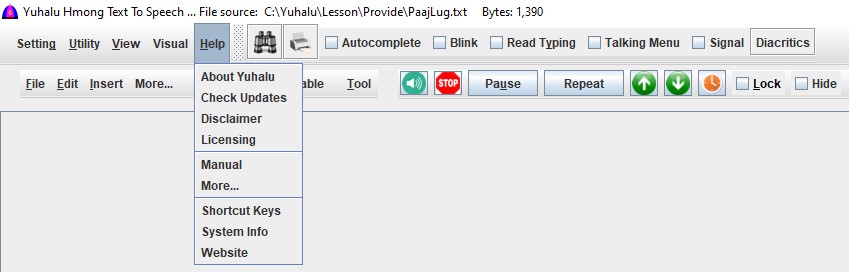
| Name | Function |
|---|---|
| About Yuhalu | Show information about Yuhalu software. AboutYuhalu.html |
| Disclaimer | Show the DISCLAIMER. Disclaimer.html |
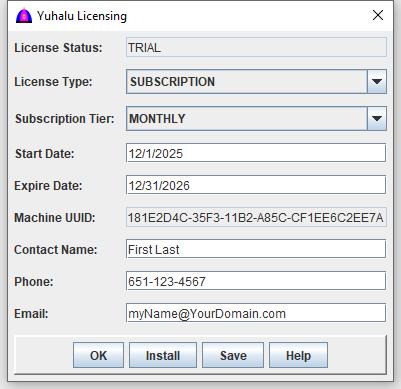
| Licensing | Show licensing menu to subscribe for unlimited use . Refer to its screen . |
| Manual | Show user's manual, or it is actually this one. |
| More... | Show more help files, including those on menus. |
| Shortcut Keys | Show shortcut keys. ShortcutKey.html |
| System Info | Show the operating system (OS), hardware and software. |
| Website | Connect to https://www.yuhalu.org |
Note: All the buttons and the blank field show on each help page on the bottom from the inside of Yuhalu Hmong Text To Speech only, but not by clicking any HTML help file from any browser.
This table describes the function of each button and the blank field.
| Button Name | Function |
|---|---|
| Close current window. | |
| Find: | Enter the searched word. After pressing the return key, the software starts searching and highlights all matched found. |
| Show the next matched word. | |
| Show the previous matched word. | |
| Count: 5 | Show the number of matched words. |
Main Toolbar
As shown on this picture below, it is the one that is anchored to the right side of the menu bar and it is applicable more to the main document.It is a floating toolbar that can be moved to any place on the screen.
To move it, click the matted area to the left of the binocular icon
 for Find & Replace and hold the mouse button while drag it out to where wanted, then release the mouse button.
To put or anchor it back to its location, click its close button at the top right corner.

Any task performed from this toolbar affects most documents, except the find and replace
and print  buttons.
This table describes what each options does.
| Button/Name | Function |
|---|---|
|
Access Find & Replace screen with some options that are on and some are off based on the condition of the document that is editable or read only. Refer to its screen or help file file FindReplaceDialog.html |
|
Print the selected texts or graphics on the main document. |
| Autocomplete | Check to show autocomplete list based on dialect and loanwords. |
| Blink | Check to blink focus component and other tasks. |
| Talking Menu | Check to read a menu's instructions in Blue Hmong or White Hmong dialect based on setting dialect after clicking it. Refer to setting dialect help SettingDialect.html |
| Read Typing | Check to read typing word after pressing the space bar, and to read the whole line after pressing the return key. |
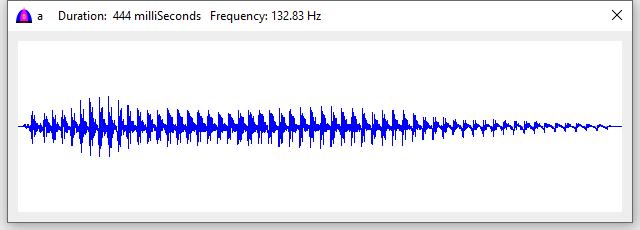
| Signal | Check to show the signal of a sentense, a word, syllable, or audio segment while reading.
Note that the signal may differ depending on context:
when a word ends with punctuation, the signal fades out gradually;
when followed by another word, the end of the signal fades rapidly due to trimming,
helping the reading sound more natural.
Please note that when this checkbox is checked, and the reading is in progress, other menus cannot be accessed due to the signal window takes over the focus. To access other menus, uncheck its checkbox or click the button. Here is the monaural audio signal for sound a.wav. The signal is plotted based on the settings of speed and pitch so the same syllable may look different. |
| Click it to show its menu with checkboxes. When any of these are checked, their features are applied for typing from RPA to diacritics, reading and translitations.
If the Tone Markers checkbox is checked on the pop up menu, there will be eight buttons to show the RPA tone markers and diacritical marks. Note: As of now, these diacritical marks are in the experimental stage so they may be changed in the future. Refer to its help file DiacriticalMark.html. |
|
Main Document
This is the main document where user can open existing text file with file extension .txt and create new one with audios such as music in WAV and MP3 formats, picture files and video files. It has its own menu bar with options.All files opening under File menu fill this document when it is focus.
This main document is divided into two panes. The left pane is to show pictures while reading, and the right pane contains the text.
Notes:
- Text cannot be entered or edited when the Lock checkbox on the menu bar is checked and its color is red.
While reading is in progress, this checkbox is automatically checked to prevent data entry, and to highlight reading words correctly. - Sometimes the screen would go blank or some of the texts would be partially chopped off when reading. When this happens, the reading words will not be highlighted or just partially. The best thing to do is to exit the software, then run again.
File Menu
Most submenus under this menu require the user to enter the password showing in red color to the field on the right side of the Confirm password if there are changes to the current document.This password is different each time because it is generated randomly, and it is a feature not to loose data if there are changes and not to save a file unintentionally. Enter ok in upper or lower case letter for convenience instead of using the one prompted.
Just follow the instructions what to do when the password screen shows up.
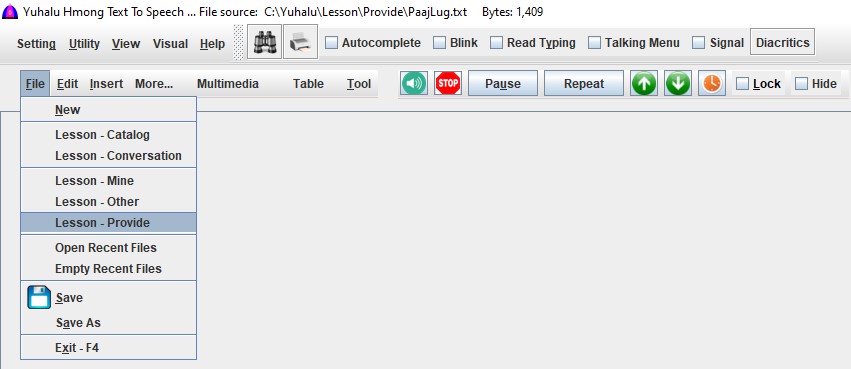
The table below describes what each option does.
| Name | Function |
|---|---|
| New | Create new text file, then save for subsequent uses. The default file name is "NoNameText.txt". |
| Lesson - Catalog | Open saved files from folder Lesson\Catalog. To open a file from the list, click it then the button, or just double click it. |
| Lesson - Conversation | Open saved files from folder Lesson\Conversation. To open a file from the list, click it then the button, or just double click it. |
| Lesson - Mine | Open saved files from folder Lesson\Mine. To open a file from the list, click it then the button, or just double click it. |
| Lesson - Others | Open saved files from folder Lesson and other folders. Notes:
|
| Lesson - Provide | Open saved files from folder Lesson\Provide. To open a file from the list, click it then the button, or just double click it. |
| Open Recent Files | Open recent files or history. Only up to 50 files are maintained. Picture To open a file from the list, click it then the button, or just double click it. |
| Empty Recent Files | Empty recent files or history from the list. Picture |
| Save | Save current file if there are changes. Follow instructions as they appear. |
| Save As | Save the current file for a different name, or save the file name when selecting New option. Follow instructions as they appear. |
| Exit- F4 | Exit the software. Note: Before exiting, there will be prompt to save file if there are changes or it is a new file. |


Edit Menu
All tasks performed under this Edit menu affect texts on the main document only.It is only active when the Lock checkbox is unchecked.

The table below describes what each option does.
| Name | Function |
|---|---|
| Clipboard | Clear and edit the contents of the system clipboard. Refer to its screen or help file Clipboard.html |
| Cut | Cut the selected text and put into clipboard. |
| Copy | Copy the selected text and put into clipboard. |
| Paste | Paste the text from the clipboard from either Cut or Copy above starting at the current cursor position. |
| Undo | Undo a change. Use with care because this can recover previous texts loaded in memory with different file name. |
| Redo | Redo a change. Use with care because this can recover previous texts loaded in memory with different file name. |
| Convert Text | Access its window. Refer to its screen or help file ConvertText.html |
| Remove | Access its window. Refer to its screen or help file RemoveTool.html |
| Sort | Access its window. Refer to its screen or help file SortTool.html |
Insert Menu
When active, all insertions from any of these options are applied to the main document or the focus document when flashes in red color aroud the borders. While on any of these windows, select the option from the dropdown menu or use the same selected option, click a location on the focus document, then click the button to insert at that location, then repeat this process until done.Note: Instead of selecting any of these options from the dropdown menu, the user can enter the format to the document as well.
Click the button to close and exit.
The picture below shows all its submenus, and the table describes what each one does.
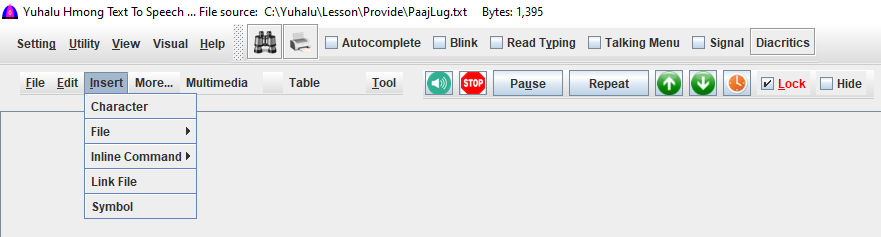
| Name | Function |
|---|---|
| Character | Insert character(s) between a number and a word to the selected texts. Refer to its screen or help file InsertCharacter.html |
| File | |
|
Audio Insert one or multiple audios selected from popup window to the cursor location to play audio. For more detail, Refer to its screen or help file InsertAudio.html. The inserted text has the complete absolute path, example: C:\Yuhalu\Audio\Music\MyFavoriteSong.mp3. Relative path such as Audio\Music\MyFavoriteSong.mp3 will work fine too if it is a local file. Audio formats: WAV, MP3, FLAC – speech, music, sound effects, etc. IMPORTANT: Make sure that no file name contains spaces. The software parses words using space as boundary. Remove spaces from file names first. |
|
|
Picture Insert one or multiple pictures selected from popup window to the cursor location to slide. To select all pictures in a folder, press Ctrl + A. Folder names may also be highlighted, but they are not inserted. Picture formats: GIF, JPG, PNG |
|
|
Text Insert a text file at the caret position. |
|
|
Video Insert one or multiple videos selected from popup window at thr cursor location. To select all videos, press Ctrl + A. Folder names may be highlighted but are not inserted. Note: It is recommanded to convert all videos to format MP4 using Video Auditor before inserting to the document because it takes times time to convert while reading aloud. |
|
| Inline Command | |
|
All Commands Refer to its screen or help file InsertInlineCommand.html. |
|
|
Dialect Refer to its screen or help file InsertDialect.html. |
|
|
Pause Time Refer to its screen or help file InsertPauseTime.html. |
|
|
Read Number Refer to its screen or help file InsertReadNumber.html. |
|
|
Voice Refer to its screen or help file InsertInsertDialect.html. |
|
| Link File | Refer to its screen or help file InsertLinkFile.html. |
| Symbol | Refer to its screen or help file InsertSymbol.html. |
More...
Click this menu will show more submenus, and after clicking a submenu, a new screen with many tabs will show up.Most tabs contain buttons that the user can click to read the text on the button and some text behind it.
Some tabs have English only while some others have English, Hmong and Mong and along with popping pictures while reading aloud.
Refer to the picture below.

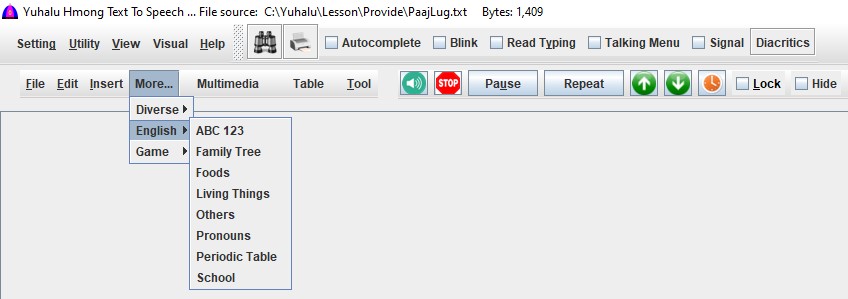
Click an option on the dropdown to expand or to show more menus.
On the new window with many tabs, navigate from tab to tab by clicking the desired tab to show its contents.
This picture shows all the options under Diverse menu.
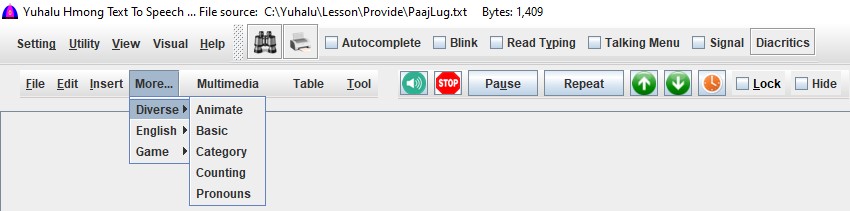
Animate
There are two windows for this option. The top window is for animation.The bottom window is for the user to interact with by entering RPA consonant, vowel and tone marker, and along with other parameters for sound and animations.
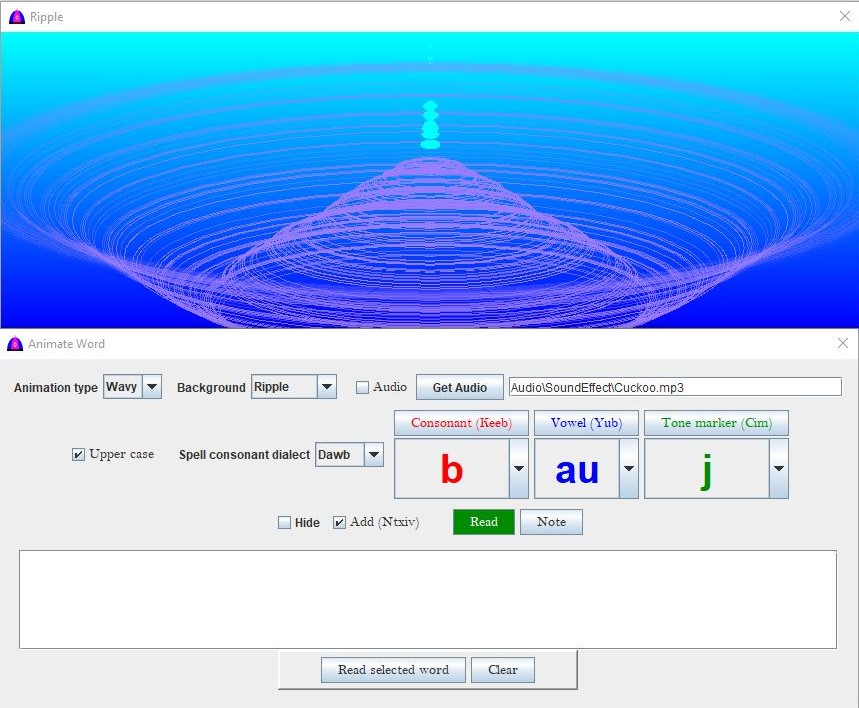
Basic
The following are pictures for all tabs under Basic tab.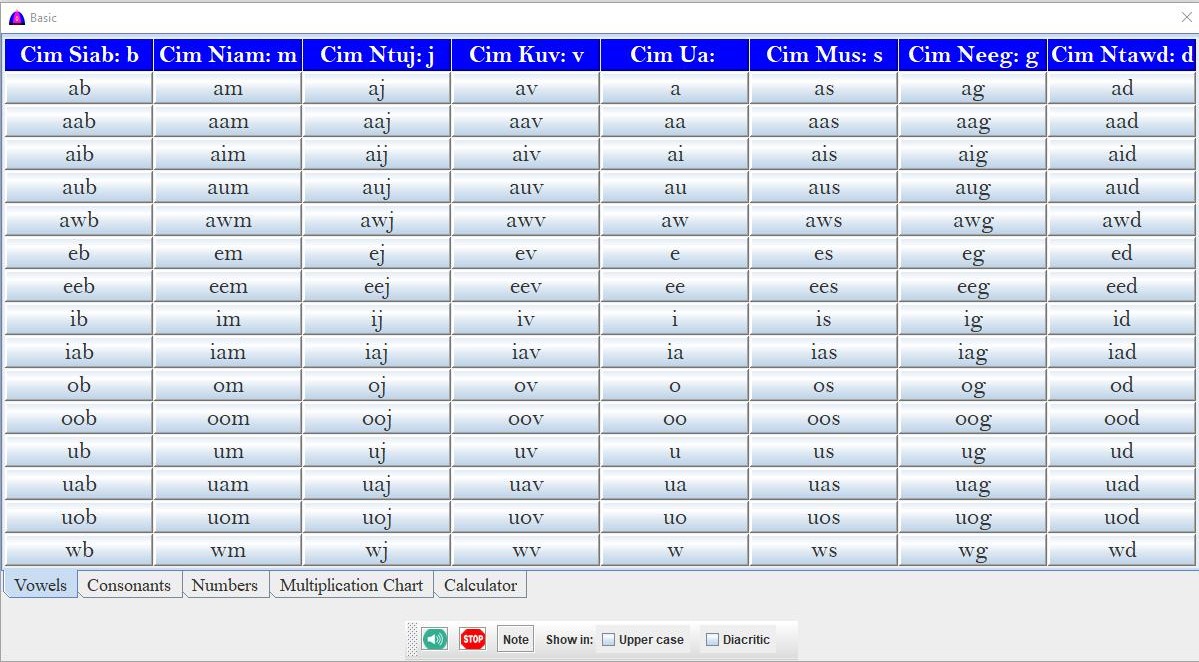
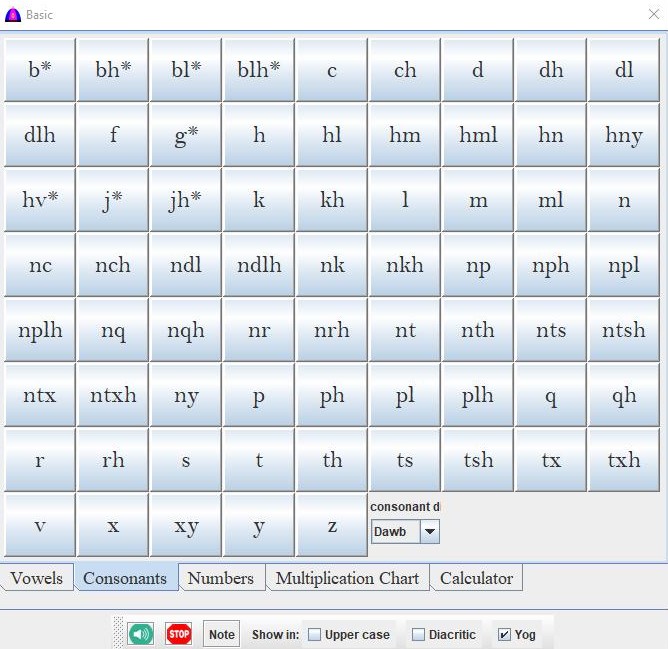
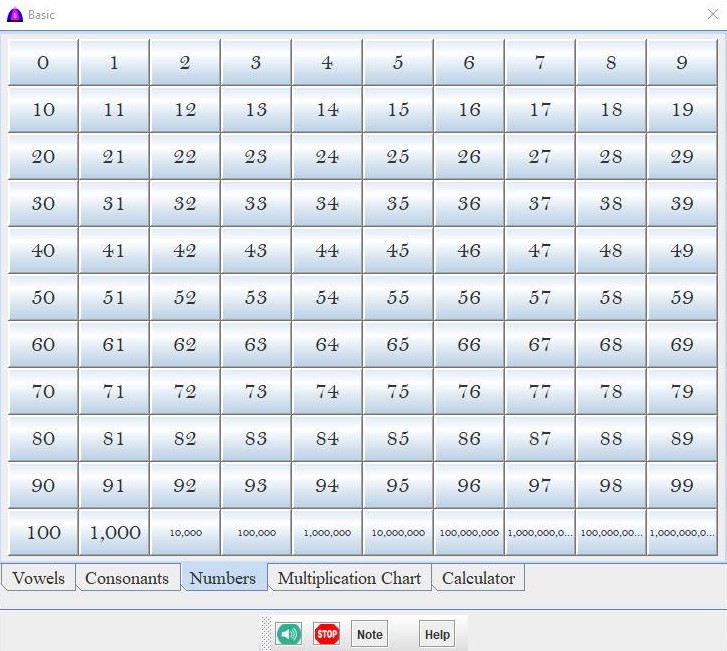
Due space limitation, this tab does not show.
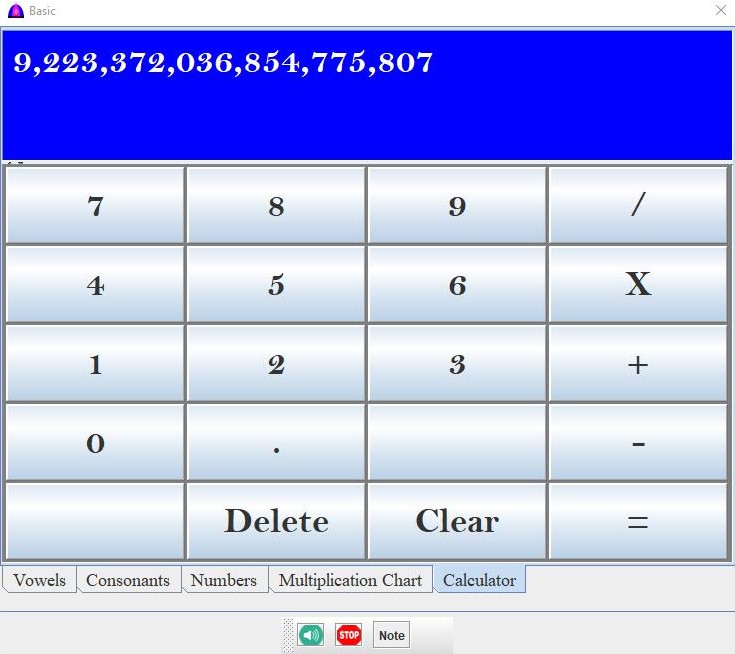
On this calculator tab, use the left button of the mouse for data entry and action.
How to use?
- To read a button, just click it.
- Click this button
 to highlight and to read text on each button from the beginning to the end for all buttons on that tab, except the calculator tab.
 - Click this button
 to stop reading.
 - Click this button to show the popup note screen where file can be opened to be read.
- Check this checkbox to show letters on buttons in upper case for vowel and consonant tabs.
Category
Each tab is divided into two panes. The top pane is used as document with automatically loaded text that can be edited, but no saved option. The bottom pane has all the push buttons.The following ares pictures for all tabs under Category option.
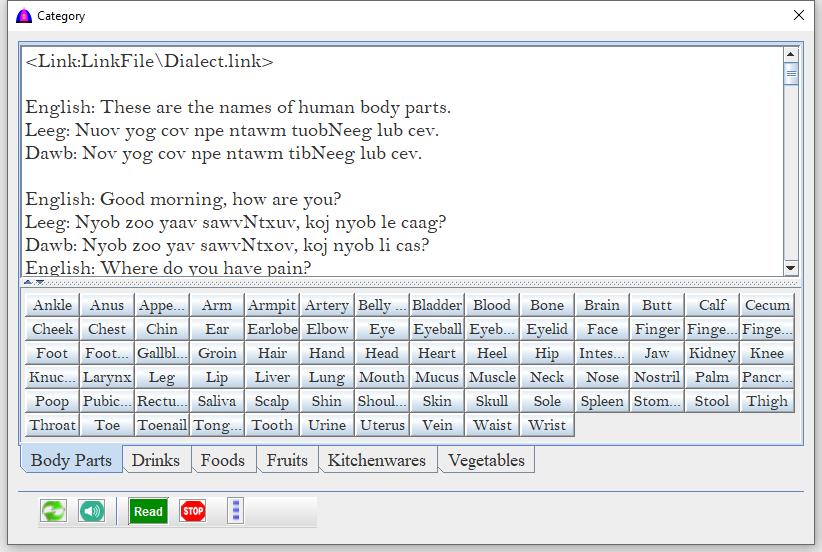
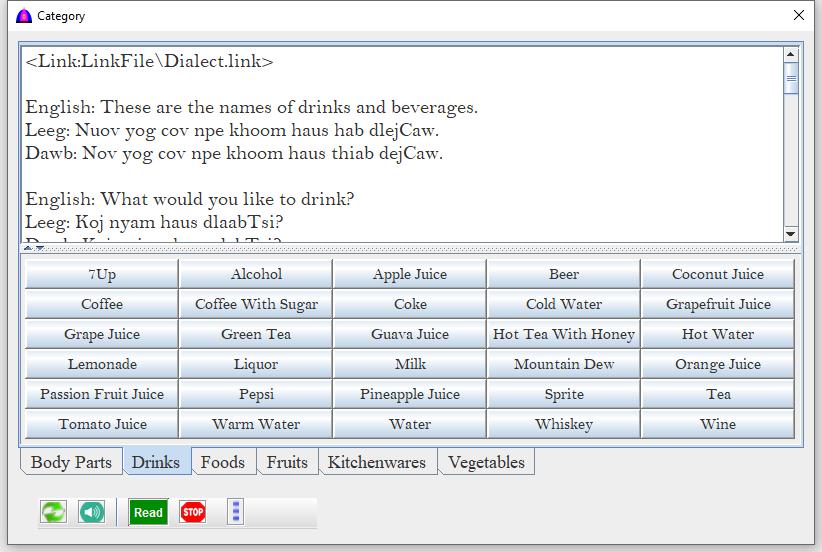
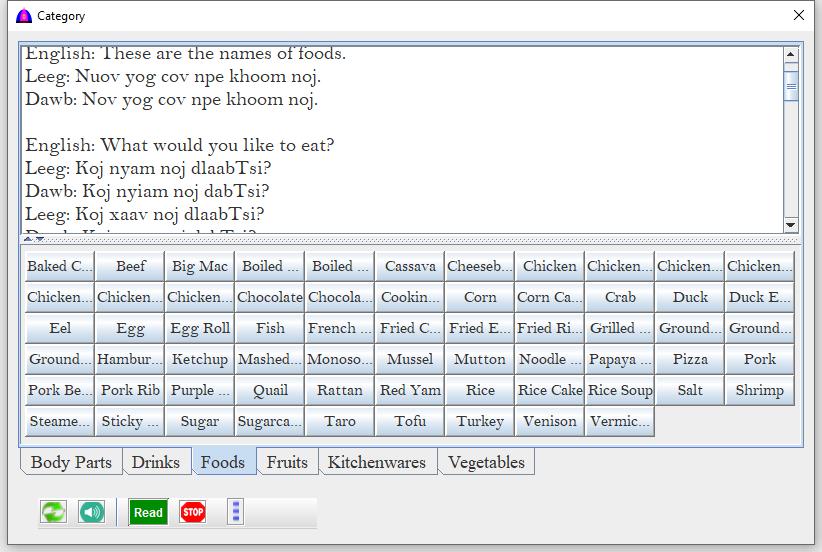
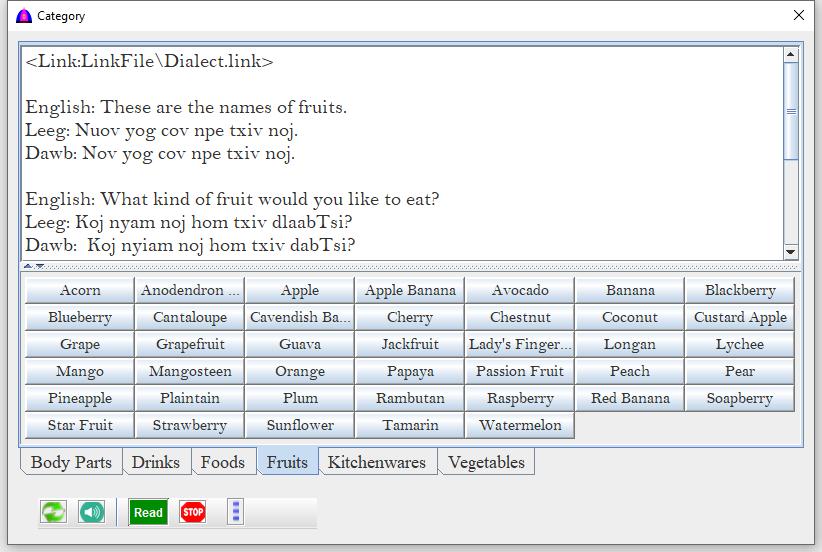
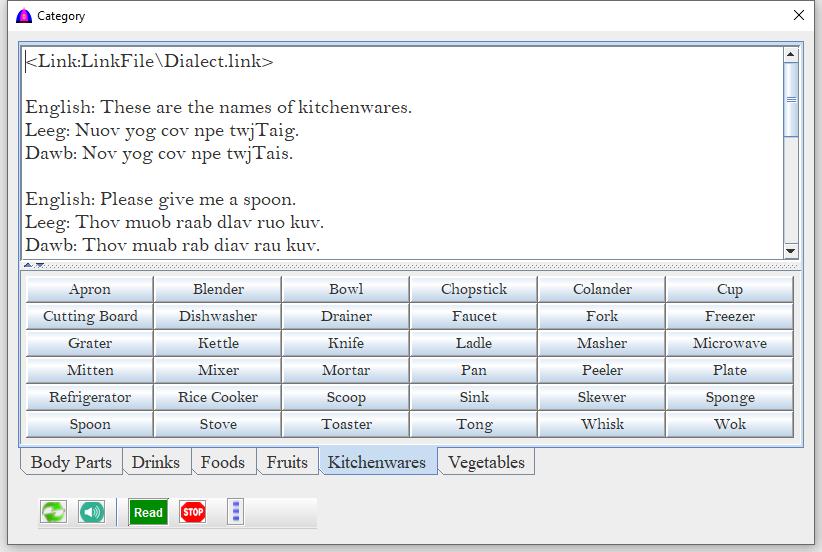
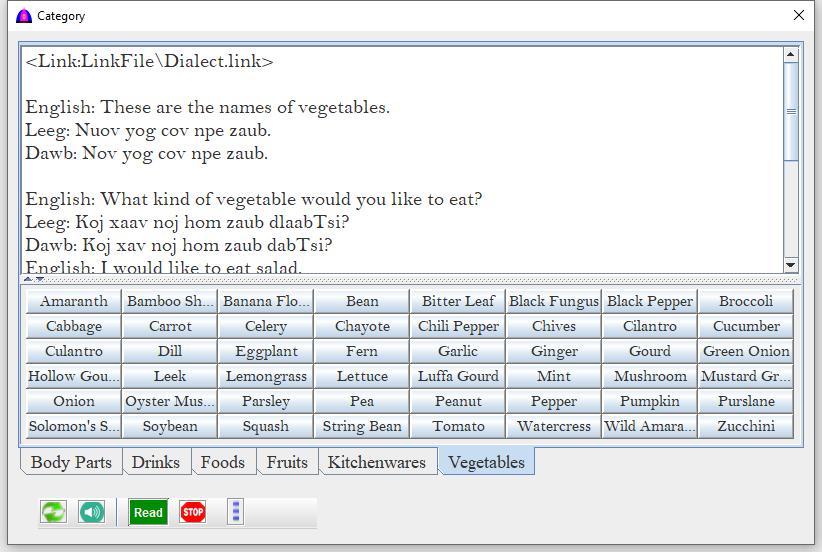
Category Toolbar
The toolbar with all the action buttons is on the bottom, and it is common to all tabs. The software keeps track of the active tab to interact with the user.The table below describes what each option does.
| Name | Function |
|---|---|
 |
Click this button to reload file to the top pane. |
|
Click this button to highlight and to read the selected texts on the top pane. |
| Click this button to read the texts on the buttons from the first one to the last one. | |
|
Click this button to stop reading on pane. |
 |
Click this button to access the Category Options with checkboxes as below. Note: When clicking a button but no sound, it means that none of the reading dialog checkbox below is checked. |
| Dawb | Check to read texts on clicked button in White Hmong dialect. |
| English | Check to read texts on clicked button in English. |
| Leeg | Check to read texts on clicked button in Blue Hmong Dialect. |
| Show text | Check to show popup window with reading texts. |
Pronoun
The following ares pictures for all tabs under Pronoun option.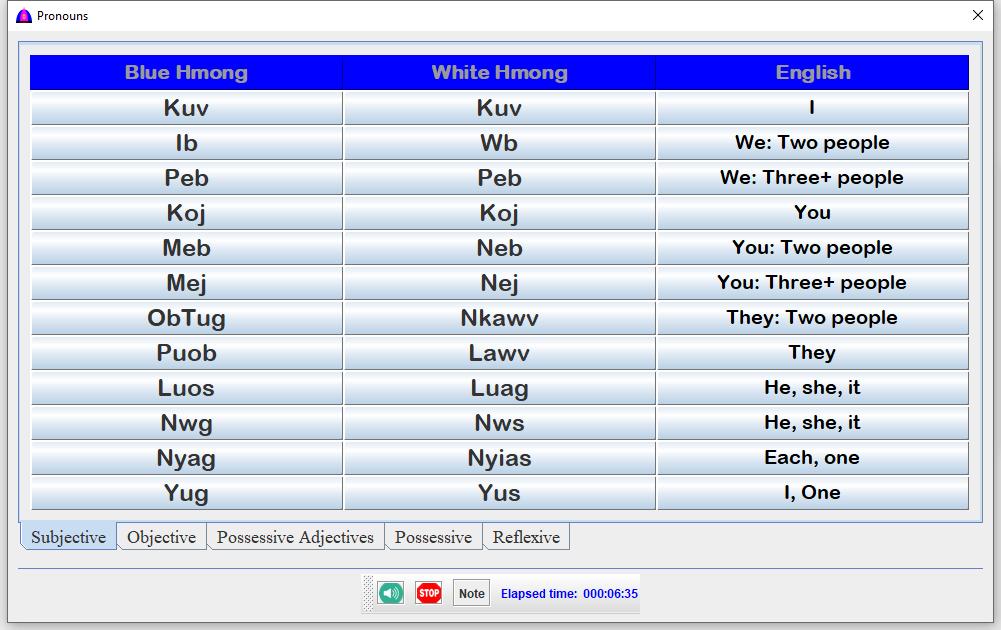


How to use?
- To read a button, just click it.
- Click this button to highlight and to read text on each button from the beginning to the end for all buttons on that tab.
- Click this button to stop reading.
- Click this button to show the popup note screen.
English
All the buttons on all taps are in English.When click a button, the TTS reads the visible text and those behind aloud if there are any, and shows the picture if existed along the sound.
This is a picture of all the menus under English.
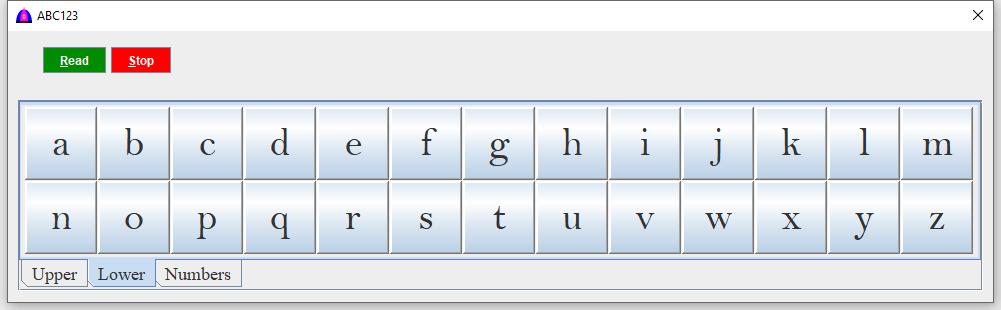
Due to space limitation, only the ABC123 tab shows below as example.
Game
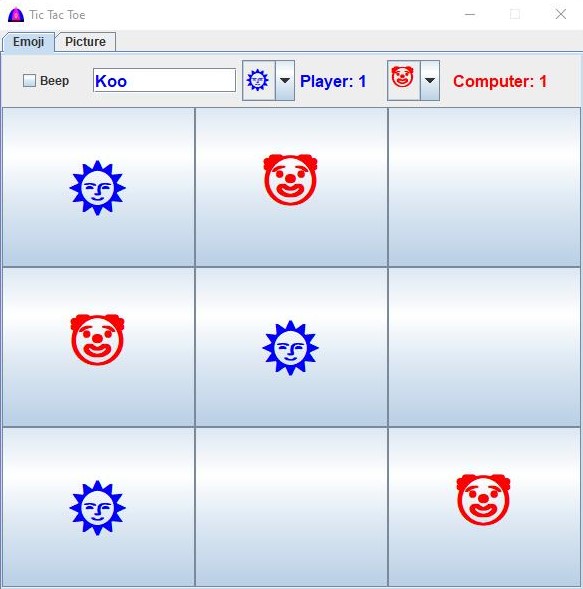
Tic Tac ToeThis is tic tac toe game, and there are two tabs. The first tab uses emojis while the second tab use pictures.
All emojis and pictures can be selected by the user.
Refer to the picture below.
How To Play
The user always starts first. If you want to win more, it is suggested that you always click the middle square because you can move eight directions, up, down, left, right and diagonals.
To change emoji for either the player or the computer, click the arrow on the combobox on the emoji tab.
To change picture for either the player or the computer, click the picture on the picture tab.
Multimedia
The purpose of this feature is used as background while reading on the main document, or it can be used alone as needed. It is similar to the main document, but with less options.Refer to its screen or help file file Multimedia.html.
Table
This is a picture of the Table with its own menu and toolbar. Refer to its screen or help file Table.html.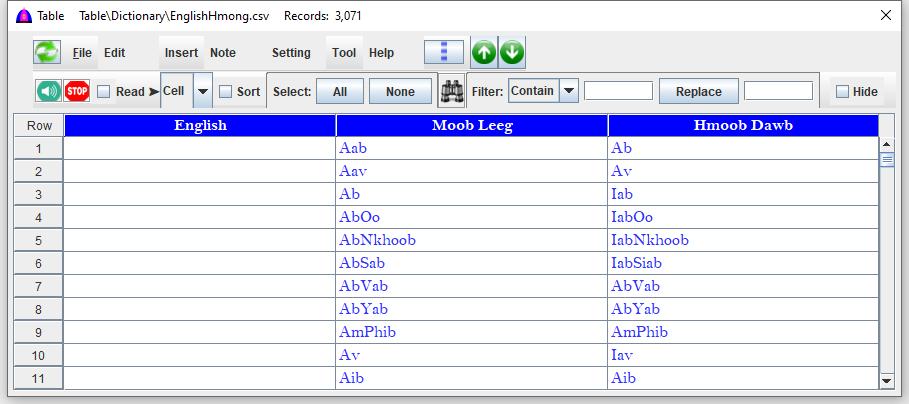
Tool Menu
These options use mostly text from the main document as input.Most options have their own Help button to access help.
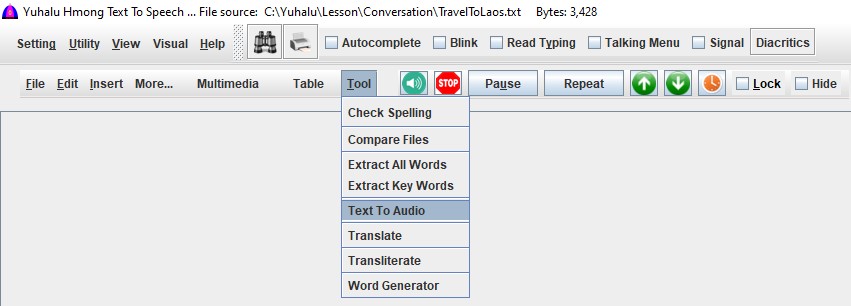
| Name | Function |
|---|---|
| Check Spelling | Check spelling for the selected text or the whole document and based on setting at Text Selection if no selection. To check spelling for selected texts, select them before clicking this option. |
| Compare Files | Refer to its screen or help file CompareFile.html |
| Extract All Words | Refer to its screen or help file ExtractAllWord.html |
| Extract Key Words | Refer to its screen or help file ExtractKeyWord.html |
| Text To Audio | Refer to its screen or help file TextToAudio.html |
| Translate | Refer to its screen or help file Translate.html |
| Transliterate | Refer to its screen or help file Transliterate.html |
| Word Generator | Refer to its screen or help file WordGenerator.html |
Text Toolbar
This toolbar is for the main document, and it is located on the right side of the menu bar.

| Button/Name | Function |
|---|---|
|
Refer to this help TextSelection.html on how to select text before clicking this button. Click to process and to read text, and its shortcut key is Alt + R. Follow popup instructions what to do when they show if there are any when normalizing and tokenizing. While reading, the stop button can be used to stop, or the button can be used to pause.This is the button (option) with the most complex codes, and the following are some of the steps performed before reading after clicking it:
|
|
Click it to stop reading, and its shortcut key is Alt + S. After stopping, all selected texts are still kept in memory to be used by the button. Note: As soon as a character is enterred to the document, all tokenized words are gone so clicking the button will do nothing. |
| This is a toggle button that changes from Pause to Resume and vice versa. Clicking it when reading changes from Pause to Resume, and the reading pauses. Clicking it when showing Resume changes to Pause, and reading resumes. | |
| Click to repeat reading the same texts selected by the read button. While reading, the stop button can be used to stop reading, or the button can be used to pause. |
|
 |
Position the caret to the beginning of the document. It is similar to shortcut key Ctrl + Home. |
 |
Position the caret to the end of the document. It is similar to shortcut key Ctrl + End. |
 |
Access its screen to set pause time for word or syllable when reading. It is the time to pause before reading the next word or syllable. For normal reading, set it zero (0). Refer to this picture how it looks like. |
| Lock | When it is checked, click it to show a window to enter password to unlock and to allow editing and data entry. This password is randomly generated each time, and it can be highlighted with the mouse and copied (Ctrl + C), then pasted (Ctrl + V) to the Confirm password field. Use password ok in either upper or lower case letter is fine. Click the button to unlock. To lock it, just check its checkbox when it is unchecked. Notes:
|
| Hide | Hide or show the main menu bar and the main toolbar on top. To use the main toolbar before hiding this main menu, drag it out. |
| Syllable: 30/292 10% Elapsed time: 00:00:13 | This is the status bar showing the information as indicated when reading. |
